
Luminar Mobile Photo Editor: Features, Limits, and Uses

Bob Wild
Fine Art Photographer, Vancouver Island
Founder of Who Said Photography | 20+ years shooting | I try and test every tip on real shoots before it goes on the page
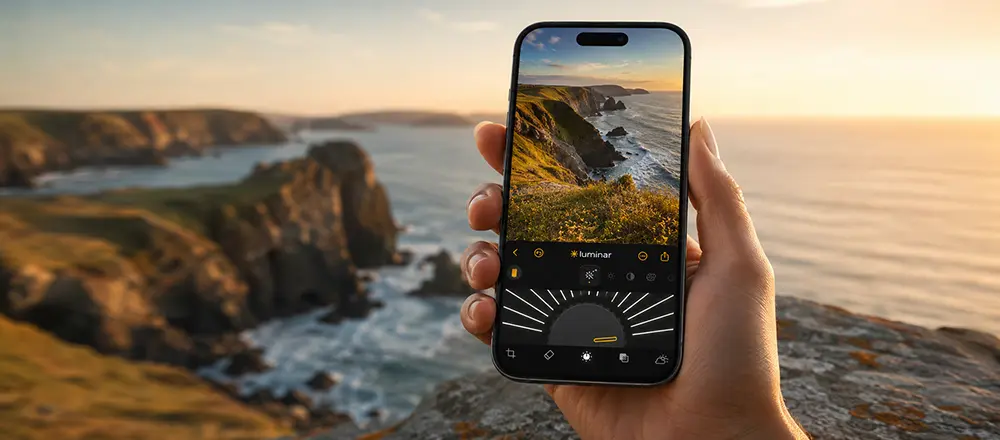
Skylum’s Luminar Mobile photo editor is an AI-powered editing app for phones, tablets, and other supported connected devices. It’s made for people who want faster photo edits without learning a complex desktop workflow.
The app can help with common edits like improving lighting, replacing skies, touching up portraits, removing objects, cropping, and working with some RAW files. It also includes basic and more advanced editing tools, which gives you more control than a simple filter app. However, features, pricing, RAW support, and export options may vary by device, platform, and paid access. Luminar Mobile can fit into a larger Luminar workflow, but it is best treated as a practical mobile editor, not a full replacement for desktop editing software.
Key Takeaways
AI tools can speed up common photo edits, especially when fixing lighting, portraits, skies, and distractions.
Features can vary by device, platform, app version, and account access, so check before relying on them.
RAW support is useful for serious editing, but not every device or file format may work properly.
Some tools may require payment, sign-in, or a subscription before you can export or use them fully.
Luminar Mobile suits beginners, travellers, portrait editors, social creators, and Luminar users wanting mobile flexibility.
What is the Luminar Mobile photo editor?
Luminar Mobile Photo brings some of the Luminar-style editing tools to your iPhone, iPad, Android, ChromeOS, and Apple Vision Pro.
Many of us don’t want or need to edit every photo on our computer. A mobile editor lets you edit a photo soon after taking it, which is helpful for travel, social posts, portraits, and everyday shooting.
The app focuses on quick improvements. Tools like Enhance AI, Relight AI, Sky AI, Skin AI, Body AI, Bokeh, and Erase are built to speed up your workflow. You maintain control over the editing process, while the app assists by automatically applying certain enhancements for you.
It also includes regular editing tools. Crop, develop, curves, details, filters, monochrome looks, and landscape adjustments give you more control when an AI edit is too strong or not quite right.
Who is Luminar Mobile best for?
Luminar Mobile is built for beginners, mobile creators, travel shooters, portrait editors, and those wanting more editing options away from a computer.
Not every photo app is built the same. Some are best for quick edits. Some are better for deep editing workflows. Luminar Mobile sits between those two ideas. It’s simple enough for the casual user, but it provides you more control than a basic phone editor.
A beginner might use it to brighten a dark photo, clean up a background, or make a portrait look more polished. A travel photographer might use it to improve skies, recover detail, or remove small distractions from a street scene.
Portrait editors like tools for skin, body shape, background blur, and lighting. While these tools can save time, they still require careful handling. Pushing them too far can make the result look fake.
Neo users might appreciate having a mobile option. You should treat it as a mobile editing tool first. Don’t assume it has every desktop feature or that it replaces your full desktop workflow.
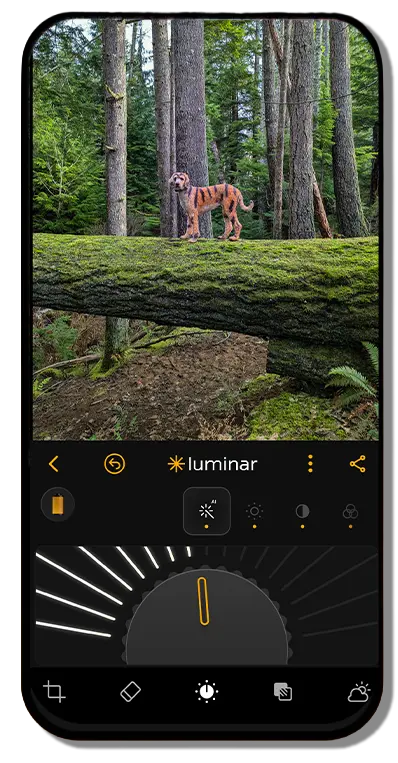
What can you edit with Luminar Mobile?
In Luminar Mobile, you can adjust lighting, colours, skies, portraits, backgrounds, details, and crops, and it works with most RAW files.
Enhance AI is useful when you want a fast overall improvement. It can help with tones, colours, and general balance. Relight AI is more specific. It helps when the subject is too dark, the background is too bright, or the photo has uneven light.
Sky AI is made for replacing or improving skies. This app helps travellers with their landscape images, but use it carefully. A sky that doesn’t match the rest of the image’s light feels off.
Erase, or object removal, is useful for small distractions. It can help remove things like signs, marks, or unwanted objects. It works best when the background is simple. Busy scenes can be harder.
For portraits, Skin AI, Body AI, and Bokeh or Portrait Bokeh help with retouching and background separation. These tools are helpful for social photos, headshots, and those quick family images; remember that subtle edits usually look better.
Manual tools are available and very useful. Cropping helps with framing. The Develop module handles basic exposure and colorwork. Curves give you more control over contrast and tone. Details can sharpen parts of an image, while filters and monochrome options help set the look.
Best for / Watch out for
|
Best For |
Watch Out For |
|---|---|
|
Beginners who want faster edits |
Some tools may be paid or limited |
|
Travel and landscape photos |
Sky edits can look fake if pushed too far |
|
Portrait touch-ups |
Skin, body, and blur tools need subtle use |
|
Mobile social content |
Pricing can change by platform |
|
RAW editing on supported files |
Not every RAW format is guaranteed |
|
Luminar Neo users |
It is not a full desktop replacement |
What devices does Luminar Mobile support?
Skylum positions Luminar Mobile for iPhone, iPad, Android, ChromeOS, and Apple Vision Pro. Current official requirements mention iOS 17 or newer for iPhone. Before you install or purchase, review the listing for your device.
Device performance also matters. AI editing can be harder on older phones and tablets. Some tools may run slowly, and some feature availability may depend on your device, operating system, app version, or account access.
Can Luminar Mobile edit RAW photos?
Luminar Mobile can support RAW editing, but compatibility depends on your device, operating system, app version, and camera format.
This is a key detail for serious photographers. RAW files give you more editing adjustments than JPEGs, which are compressed image formats. However, it is important to note that no app can be assumed to support every RAW file format for all mobile phones.
A simple way to verify is to import a few photos from your phone. Try exposure recovery, colour editing, export quality, and speed. That will tell you more than a feature list.

What should you verify before paying?
Verify which tools are included. Some apps show premium features inside the editor but require a paid plan to export or use them fully. That can be frustrating.
Account requirements are worth checking, too. Some features may need sign-in or cloud access. If you prefer editing without an account, confirm that before you commit.
For performance, test the app with the type of photography you actually shoot. A few portrait files, a travel image, a low-light photo, and one RAW file can show whether the Luminar Mobile photo editor fits your routine.
Is Luminar Mobile worth using?
Luminar Mobile is worth trying if you want simple AI tools, touch-friendly editing, and more control than your phone’s basic photo app.
It makes the most sense when speed matters. You can brighten a photo, improve a portrait, remove a small object, or test a stronger look without opening the desktop program.
It’s less ideal if you need advanced file management, precise professional retouching, or a full desktop editing setup. It can be part of that workflow, but it shouldn’t be expected to replace every tool.
The best approach is to treat it as a practical mobile editor. Try it with your images, check which features are paid, and see whether the results match the way you like to edit.

RECOMMENDED EDITOR
Skylum mobile photo editor – For when you outgrow the build in phone editor
The desktop & mobile editor I reach for my serious shots. Free 30-day trial
Conclusion
Luminar Mobile photo editor is a useful option for photographers who want AI help without a steep learning curve. It can handle common edits like lighting fixes, sky changes, portrait touch-ups, object removal, cropping, and RAW adjustments on supported files.
Device support, pricing, RAW compatibility, and paid features can vary, which may affect your overall experience and the effectiveness of the software for your specific needs. Test it with your photos first, especially if you plan to use it for travel, portraits, or a larger Luminar workflow.
About Bob Wild
Bob is a fine-art photographer on Vancouver Island and the creator of Phone Photo Guide, and the founder of Who Said Photography. He shares practical mobile photography tips based on real shooting situations, including portraits, natural light, composition, and everyday phone editing.