
Snapseed Photo Editing App: Your Practical Guide for Editing Photos on Your Phone
Bob Wild
Fine Art Photographer, Vancouver Island
Founder of Who Said Photography | 20+ years shooting | I try and test every tip on real shoots before it goes on the page
The Snapseed photo editing app is a simple but capable editor for people who want more control than the basic photo app on their phone. It’s made by Google and is available for iPhone, iPad, and Android.
It’s not the right tool for every editing job, but it’s still useful for quick fixes, natural-looking edits, and learning how phone photo editing works.
Key Takeaways
Snapseed is best for quick, hands-on edits when improving individual phone photos naturally.
Tune Image and Selective give beginners useful control over light, colour, and specific areas.
RAW editing can be useful, but support depends on your device, file type, and platform.
Snapseed is not ideal for large workflows, batch editing, or advanced desktop-level retouching.
What is Snapseed and who makes it?
Snapseed is a mobile photo editing app made by Google for editing photos on your phone or tablet.
It gives you more control than many built-in photo apps, without feeling like a full desktop editing program. You can adjust light, colour, sharpness, crop, perspective, and specific parts of a photo.
That matters because most phone photos don’t need a huge edit. They usually need a few careful fixes. A dark travel photo may need brighter shadows. A food photo may need warmer colour. A portrait may need softer contrast and a cleaner background.
Snapseed is useful when you want to make those changes yourself instead of applying one heavy filter and hoping it works.
Features and interface details can differ between iOS and Android. They can also change with app updates, so it’s worth checking the version on your own device before following a tutorial exactly.
What can Snapseed do for phone photos?
Snapseed can fix common phone photo problems like poor exposure, weak colour, crooked lines, small distractions, and uneven lighting.
Its main strength is control. Instead of editing the whole photo every time, you can adjust certain areas. That helps when the sky looks fine but the subject is too dark, or when a face needs a small brightness boost without changing the background.
The Tune Image tool is often the best place to start. It lets you adjust brightness, contrast, saturation, ambience, highlights, shadows, and warmth. These are the edits most phone photos need first.
Selective is useful when one part of the image needs help. You can brighten a face, deepen a sky, or add contrast to a subject without changing everything.
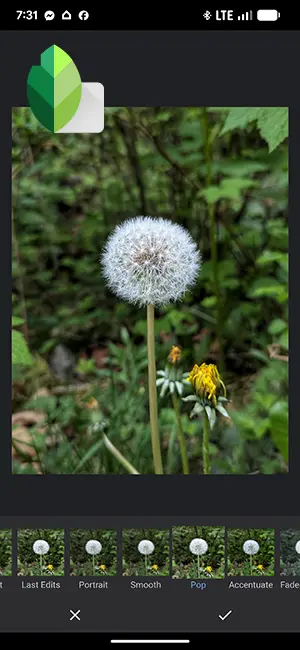
Selective is useful when one part of the image needs help. You can brighten a face, deepen a sky, or add contrast to a subject without changing everything.
Healing can remove small distractions, such as a speck on a wall, a bit of litter, or a tiny object near the edge of the frame. It works best on simple backgrounds. It’s not meant for major retouching.
Brush lets you paint adjustments onto the photo. This can help with light, exposure, temperature, and saturation in specific spots.
Curves gives you more advanced control over brightness and contrast. It’s powerful, but it’s easy to overdo. Small curve changes are usually enough.
Perspective is useful for buildings, street photos, and travel shots. It can help straighten lines when your phone was tilted up or sideways.
White Balance can help fix photos that look too blue, yellow, or green. This is useful for indoor photos, food photos, and evening shots where the colour feels wrong.
Snapseed also supports JPG and RAW files. RAW Develop can give you more editing room with supported RAW images, but the experience may vary by phone, file type, and platform.
A simple Snapseed editing workflow
A good Snapseed workflow starts with the basics, then moves to smaller fixes.
Here’s a simple order that works for many phone photos:
|
Step |
What To Do |
|---|---|
|
1 |
Open the photo a nd check what need correcting |
|
2 |
Crop and straighten before details edits |
|
3 |
Adjust exposure and colour |
|
4 |
4Use selective edits or brush for local corrections |
|
5 |
Add light details or sharpening only if needed |
|
6 |
Export a copy only when to edits look natural |
This order helps because cropping can change how the photo feels. There’s no point perfecting colour before you know what will stay in the frame.
For a dark photo, start with shadows and brightness. Don’t just raise brightness too much, or the photo may look flat. Try lifting shadows a little and lowering highlights if bright areas are too strong.
For a portrait, keep skin natural. A little warmth and soft contrast can help, but strong structure or heavy sharpening can make skin look rough.
For a street or travel photo, straighten lines early. A slightly crooked building can make a good photo feel careless.
Where Snapseed works best
Snapseed works best for everyday phone photos that need thoughtful edits, not a complicated workflow.
It’s a good fit for vacation photos, food shots, casual portraits, product photos, street scenes, and social media images. You can make a photo cleaner, brighter, and more balanced without spending a long time on it.
The Snapseed photo editing app is also useful when you want to learn editing basics. Tools like Tune Image, Curves, White Balance, and Selective teach you what light and colour adjustments actually do.
Saved Looks can help if you edit similar photos often. For example, you may create a simple look for food photos with warmer colour and gentle contrast. Just remember that one look won’t fit every photo.
Where Snapseed has limits
Snapseed is not a full Lightroom or Photoshop replacement.
It’s less ideal if you manage large photo libraries, edit hundreds of images at once, need advanced masking workflows, or do detailed desktop-level retouching. It’s built more for hands-on editing than full photo management.
Batch-style workflows are also limited compared with more advanced apps. You can reuse Looks, but that’s not the same as managing a full editing system across a large shoot.
Some users may also prefer the editing tools in Apple Photos, Google Photos, Lightroom Mobile, or another app. That doesn’t make Snapseed bad. It just means your best editor depends on how you like to work.
How to avoid overediting in Snapseed
The easiest way to get better Snapseed edits is to use smaller adjustments than you think you need.
Phone photos can fall apart quickly when saturation, structure, sharpening, or contrast are pushed too far. Skin can look harsh. Skies can look fake. Food can look too orange. Shadows can get muddy.
A good habit is to make an edit, then lower it slightly. Check the whole photo, not just the part you were fixing.
Use the export as a final check. Open the saved image in your regular photos app and see if it still looks natural. If the edit calls too much attention to itself, go back and soften it.

RECOMMENDED EDITOR
Skylum mobile photo editor – For when you outgrow the build in phone editor
The desktop & mobile editor I reach for my serious shots. Free 30-day trial
Conclusion – Snapseed photo editing
Snapseed is still worth trying if you want a practical phone editor with strong manual controls. It’s easy enough for beginners, but it also gives you tools like Selective, Curves, Perspective, Brush, Healing, and RAW Develop when you’re ready for more.
The Snapseed photo editing app is best for people who want to improve one photo at a time. It’s not built for every advanced workflow, and features may vary by platform or version.
Use it for small, careful edits. Crop first, fix light and colour, make local changes only where needed, and avoid pushing effects too hard. That’s where Snapseed is most useful.
About Bob Wild
Bob is a fine-art photographer on Vancouver Island and the creator of Phone Photo Guide, and the founder of Who Said Photography. He shares practical mobile photography tips based on real shooting situations, including portraits, natural light, composition, and everyday phone editing.