
Using Phone Camera Zoom Without Losing Quality: Sharp Photos

Bob Wild
Fine Art Photographer, Vancouver Island
Founder of Who Said Photography | 20+ years shooting | I try and test every tip on real shoots before it goes on the page

I’ve taken many photos of distant subjects that looked clear on my smartphone, only to find them soft when I go to edit them later. A small preview can hide detail, especially when I’ve used too much digital zoom. Weak light and slight camera shake can make the problem even worse. I usually get better results by choosing the right lens, keeping my phone steady, and cropping the photo later when I need a closer view.
Key Takeaways
Tap a marked lens button to use your phone’s strongest zoom option.
Move closer when safe because distance makes small details harder to record.
Shoot in good light so the telephoto camera can capture sharper detail.
Hold the phone firmly because small movements become obvious when zoomed in.
Crop after shooting when pinch zoom makes the preview look soft or grainy.
Can phone zoom keep full quality?
Zooming in with your phone can keep the image quality at certain lens settings, but it can’t preserve full detail at every magnification. Most smartphones combine separate cameras, sensor crops, optics, and software processing to create the zoom range you see.
This matters because a smooth zoom dial can hide a change in capture quality. A marked setting may use a dedicated smartphone camera or a high-resolution crop, while an in-between zoom level may enlarge fewer captured pixels. The result depends on your phone, the light, and the subject.
The phrase “phone camera zoom without losing quality” is best treated as a goal, not a guarantee. Your aim is to use the cleanest available lens step and avoid enlarging the image more than the scene can support.
Which zoom button should you use?
Use the marked lens button that frames your subject without forcing a large digital crop. Buttons may include 0.5x, 1x, 2x, 3x, or 5x, but the choices depend on the phone and camera mode.
Each button can represent a different camera, focal length, or manufacturer-designed crop. It doesn’t mean every marked number uses true optical zoom. Still, these steps are usually a better starting point than pinching to an arbitrary value such as 4.75x.
Start at 1x, then tap the next marked telephoto option. On a Samsung phone or another model, the focal change may also switch to a different camera lens. Give the camera a moment to settle and inspect the fine edges in the preview. If hair, lettering, leaves, or brickwork looks smeared, reduce the zoom or find a better position.
Should you move closer instead?
Get closer when you can safely and without disturbing the subject. Filling more of the frame with the subject usually gives the camera better information than performing a heavy crop in post.
Why? Digital enlargements cannot recover details that the sensor didn’t record. A few careful steps can improve texture, focus, and exposure more than another turn of the zoom dial.
Don’t cross roads, barriers, unstable ground, private property, or wildlife boundaries for a photo. Also respect the people around you if shooting at a performance or ceremony.
When moving isn’t sensible, use the best marked telephoto option and accept a wider composition.
Why does it look worse indoors?
Longer zoom settings need more light. A telephoto camera often has a smaller sensor or gathers less light than the DSLR or mirrorless camera, and the phone may respond with a slower shutter speed or stronger noise.
Find a brighter angle before adding more zoom. Window light, open shade near a doorway, or a well-lit part of the room can help. Avoid relying on flash for distant subjects, as your flash has a limited reach.
Hold the phone with two hands and bring your elbows toward your body. Brace against a wall or railing when possible. A small tripod can help with a still scene, but it won’t stop a moving subject from blurring.
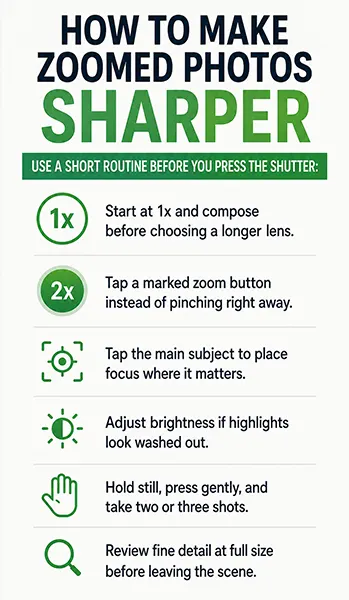
How to make zoomed photos sharper
Use a short routine before you press the shutter:
- Start at 1x and compose before choosing a longer lens.
- Tap a marked zoom button instead of pinching right away.
- Tap the main subject to place focus where it matters.
- Adjust brightness if highlights look washed out.
- Hold still, press gently, and take two or three shots.
- Review fine detail at full size before leaving the scene.
For moving people, pets, or sports, take a wider frame and leave room around the action. Following a fast subject at extreme zoom is difficult, and even correct focus can’t fix motion blur. A slightly wider sharp photo is more useful than a tight soft one.
Choosing zoom level or a crop?
Both camera zoom and cropping can be useful. Choose the method that protects the detail you care about.
|
Method |
Best use |
Main limit |
|---|---|---|
|
Move closer |
Safe access to a still subject |
Changes perspective and may disturb the scene |
|
Marked lens button |
Quick framing with a supported camera step |
Quality varies by phone and available light |
|
Pinch zoom |
A record shot when framing matters most |
Heavy enlargement can soften detail |
|
Flexible composition from a sharp wider photo |
A deep crop reduces remaining resolution |
Cropping later gives you control over the final frame. Keep enough space around the subject, use the main or telephoto lens in good light, and make a modest crop. This often works better than committing to extreme digital zoom while shooting or enlarging the scene digitally.
Test your phone’s zoom limits
Run a simple test in daylight using a subject with fine detail, such as a sign, textured wall, or book cover. Stand in one place and take the same photo at different zoom levels: 1x, 2x, and 4x. Then repeat this time, only using the pinch method.
Open the files and compare the same area at full size. Look for smeared lettering, false edges, heavy sharpening, noise, and motion blur. Repeat the test indoors. You may find that a useful telephoto setting in daylight performs poorly when the light drops.
This test is more reliable than a universal zoom rule because smartphones switch lenses and process images differently. The test provides a practical reference for future scenes and aids in understanding how to zoom your phone camera without compromising quality, ensuring that the results remain realistic.
Keep Learning
Your next move with the camera
You’ve got the controls. These are the guides I’d hand you next. Each one picks up where the other left off. Written from the same real photo shoots
-
How to Take Better iPhone Photos With Simple Fixes
How to Take Better iPhone Photos With Simple Fixes Most phone photos don’t fail because the camera is…
-
How to Take Better Photos With Your Phone
How to Take Better Photos With Your Phone How to take better photos with your phone starts with…
-
How to Use Android Camera Controls for Better Photos
How to Use Android Camera Controls for Better Photos I’ve found that most beginners don’t need more camera…



RECOMMENDED EDITOR
On1 Photo RAW – For when you outgrow the build in phone editor
The mobile editor I reach for my serious shots. Free 30-day trial
Conclusion
Start with position, then choose a marked lens, confirm focus, and steady the phone. Add only enough zoom to make the subject clear. If the preview starts to break down, step back one setting and plan a modest crop.
The best result may not be the tightest frame. Better light and a stable hold often improve phone camera zoom without losing quality more than extra magnification does. This is a useful photography habit with any smartphone. Check the file at full size while you still have a chance to reshoot.
About Bob Wild
Bob is a fine-art photographer on Vancouver Island and the creator of Phone Photo Guide, and the founder of Who Said Photography. He shares practical mobile photography tips based on real shooting situations, including portraits, natural light, composition, and everyday phone editing.