
LocalSend Review:
Best App for Phone Photo Transfers?

Bob Wild
Fine Art Photographer, Vancouver Island
Founder of Who Said Photography | 20+ years shooting | I try and test every tip on real shoots before it goes on the page
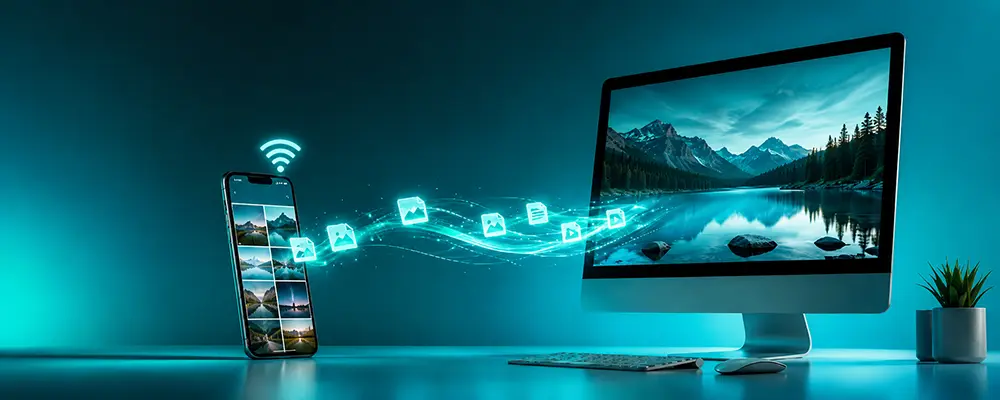
LocalSend is one of those useful apps. I keep around for a small but annoying smartphone problem: moving files between my phone and computer without hunting for cables.
In this review, I’ll explain why it is simple, useful, and practical for those shooting with their phone. When I want to move photos, short video clips, etc., to my PC, I open the app on both devices, choose the files, select the destination, and send them over my local network.
The appeal is simple. No more cables, no cloud upload, and no platform headaches moving files between devices.
Key Takeaways
Move photos, videos and large files between nearby devices on the same network.
It’a open source and works across iOS, Android, Windows macOS, and Linux devices.
It is useful for full-resolution RAW, video clips, screenshots, and edited exports.
It does not replace backups, cloud storage, or long-term photo organization.
Public or restricted networks may stop devices from finding each other.
What Is LocalSend?
LocalSend is a free, open-source file-sharing app for sending files between nearby devices on the same local network.
For mobile users, this means you can send files from your phone to your laptop or desktop, move edited JPEGs back to your phone, or transfer short video clips to your iPad or tablet without uploading everything to the cloud first.
The key point is that it works locally. It does not rely on a third-party cloud account for transfers. However, your devices need to be connected to the same network.
This makes it different from email, messaging apps, Google Drive, iCloud, or other cloud options. Those can be useful, but they often add extra steps: upload, wait, download, check quality, then delete duplicates later.
LocalSend is more like an AirDrop-style tool, but with broader device support. It’s cross-platform app meaning, it works with iOS, Android, macOS, Windows and Linux, which is helpful if your setup is not locked into one brand.
How Does It Help?
LocalSend helps you by making local file transfers faster to start and easier to understand.
This matters because photos are often larger than your everyday documents. A few RAW files, Lightroom exports, screen recordings, or short 4K clips can quickly become annoying to move through email or chat apps.
A common example is shooting with your phone, then editing on a laptop. Instead of plugging in a cable, opening a cloud app, or waiting for a sync service, you can open LocalSend on both devices, choose the files, and send away.
I mostly use it after a shoot when I want full-resolution files on my computer without waiting for a cloud sync.
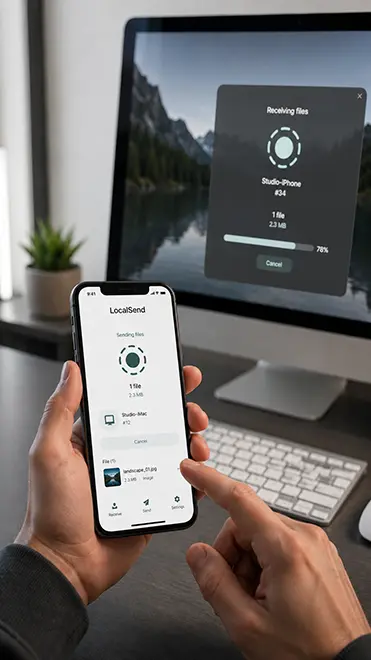
It’s also useful for sending files or photos from your computer back to your phone. You could edit a set of photos on your computer, export them, then send them back to your phone for posting to social media. This keeps your workflow simple.
It also works well when you use multiple devices. You can send files between nearby devices on the same network, like an iPhone to a Windows PC or Android to a Mac.
The reason I use the app is its flexibility for photography. It solves a practical transfer problem without requiring an internet connection
Does It Need the Internet?
No! It does not need internet access to transfer files, but the devices need to be on the same local network.
That difference matters. If you are at home, in your studio, or travelling with your router, your devices can often communicate over local Wi-Fi or LAN without sending files through an outside cloud service.
This is useful when internet service is slow, unreliable, or metered. As long as both devices are on the same local network, you can still transfer a batch of photos from your phone to your computer.
There is one caveat. Some public Wi-Fi networks, such as hotels, schools, doctor’s offices, and corporate networks, block device discovery for security reasons. In those cases, LocalSend may not detect the other device, even if both are on the same Wi-Fi.
How Do You Set It Up Localsend?
The basic setup is simple: install LocalSend on both devices, open the app, connect both devices to the same network, choose the recipient, and send your files.
For a photography workflow, the process might look like this:
- Install LocalSend on your phone and computer.
- Connect both devices to the same Wi-Fi network.
- Open the app on both devices.
- Choose the photos, videos, or files you want to send.
- Select the receiving device and send the files.
- Accept the transfer on the receiving device.
This setup is especially handy for one-off transfers. You do not need to build a new folder system, sign into a cloud account, or create a shared album just to move a few photos.
For example, you could send a group of RAW files from your Android phone to a Windows laptop, edit them, export them as JPEGs, and then send the final images back to your phone. You could also move screenshots from an iPhone to a Linux computer for a tutorial or transfer short clips from a tablet to a Mac.
The main idea is to open the app on both devices before sending.
LocalSend is not automatic backup software, so it will not quietly protect your camera roll in the background.
How Does It Compare With Other Transfer Options?
LocalSend works best as a nearby file transfer tool, not as a replacement for every sharing method.
AirDrop is excellent inside Apple’s ecosystem, but it is not built for Android or Windows users. USB cables can be reliable, but they are easy to forget, and some phone-to-computer setups still feel clunky. Cloud services are helpful for backup and remote access, but they can add upload time, storage limits, and extra file management.
Email and messaging apps are fine for a quick transfer, but they are not ideal for serious photo work. They may compress images, limit file sizes, or make it harder to manage original files.
Use LocalSend when the devices are nearby and you want to move files directly between them. It keeps the process straightforward.
|
Best For |
Not For |
|---|---|
|
Local photo and video transfers |
Remote sharing over the internet |
|
Mixed Apple, Android, and Windows setups |
Automatic camera roll backups |
|
Privacy-conscious local sharing |
Long-term photo storage |
|
Quick device-to-device transfers |
Collaborative cloud galleries |
Privacy and Control
One of LocalSend’s strongest points is privacy-focused local sharing.
For us photography enthusiasts, the practical benefit is straightforward. You can move files between your devices without creating another account, uploading images to a remote service, or sending private photos through a messaging app.
This is useful for client previews, personal family photos, travel images, or behind-the-scenes clips you do not want scattered across several platforms.
That said, privacy still depends on your habits. You should use trusted networks, keep your devices updated, and send files only to the device you meant to choose.
What Are Its Main Limits?
Both devices need to be on the same network and accessible. If the devices cannot see each other, you may need to switch networks, use a personal hotspot, or try again on your home Wi-Fi.
It is also not a backup system. Sending files from your phone to your computer is not the same as having a proper backup plan. Once the files arrive, you still need to store them safely on an external drive, in a cloud backup, or on another system you trust.
It’s also not a gallery manager, editing app, or Lightroom replacement. It will not organize your library, apply edits, sync albums, or manage versions. It simply helps you move files.
That narrow focus is part of why the app works well. It does one job and keeps the process clear.

RECOMMENDED EDITOR
Skylum mobile photo editor – For when you outgrow the build in phone editor
The desktop & mobile editor I reach for my serious shots. Free 30-day trial
Conclusion: Localsend review
LocalSend is worth trying if moving photos between devices has become a regular annoyance. It keeps the process simple: open the app, choose your files, pick the nearby device, and send.
For phone photographers, that can remove a lot of friction. You can move full-resolution photos, short clips, screenshots, and editing exports without digging for cables, waiting on cloud uploads, or staying inside one device’s ecosystem.
It comes down to one point: it is not a backup service, photo manager, or editing tool. It is a practical transfer app that does one job well, and that makes it easy to keep in your workflow.
About Bob Wild
Bob is a fine-art photographer on Vancouver Island and the creator of Phone Photo Guide, and the founder of Who Said Photography. He shares practical mobile photography tips based on real shooting situations, including portraits, natural light, composition, and everyday phone editing.