
PicsArt Photo Editor Review for Phone Photography
Bob Wild
Fine Art Photographer, Vancouver Island
Founder of Who Said Photography | 20+ years shooting | I try and test every tip on real shoots before it goes on the page
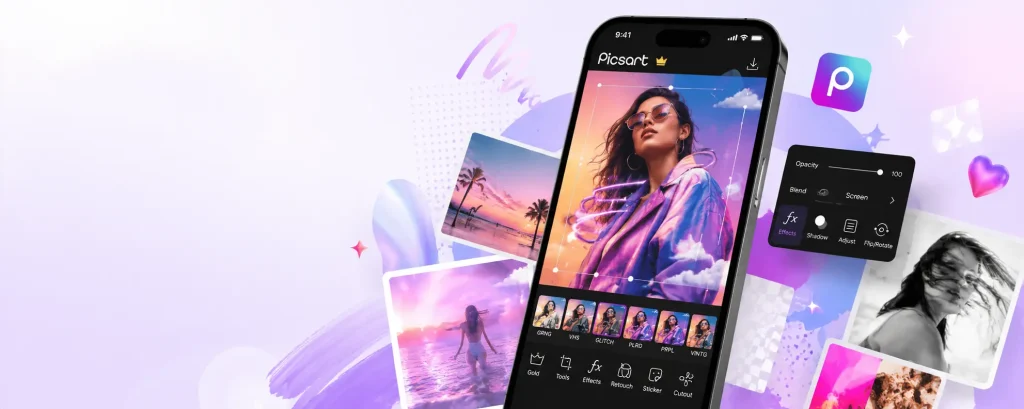
I use Picsart when I need a fast social media post from a phone photo. It’s useful when a photo is almost ready, but still needs text, a cleaner background, a better crop, or a quick design layout.
The PicsArt photo editor works best when I’m making posts, stories, thumbnails, collages, or simple promo images. It’s not my first choice for natural colour edits, but it’s handy when I want a finished image that looks ready to share.
Key Takeaways
Picsart is best for creative edits, social posts, collages, and thumbnails.
The free version works, but ads and upgrade prompts can slow you down.
Premium tools or content may add watermarks unless you upgrade.
AI tools are useful, but credits and privacy need attention.
What is Picsart used for?
Picsart is for editing photos, making social graphics, creating collages, adding text, and AI effects. It works more like a creative editing app than a basic photo fixer.
That matters because phone photos often need more than a small brightness change. You may want to remove a background, add text, make a story post, clean up a selfie, or create a quick graphic for a social feed.
Picsart includes crop, resize, filters, retouching, background remover, object remover, AI enhance, collage tools, stickers, text, and templates. You can use it for casual edits or quick content that needs a more designed look.
It’s strongest when the final image is meant for social media. For example, you can turn a simple product photo into a cleaner post, make a collage from weekend photos, or add text to a phone shot for a story.
Is the free version of Picsart useful?
Yes, the free version is useful for basic edits, simple designs, and testing the app. It’s enough to see whether Picsart fits how you like to edit.
This matters because free does not mean every tool is free. Some content, tools, storage, ads-free use, and AI credits are tied to paid plans. Premium tools or stock may also add a watermark unless you upgrade.
For light use, the free version can still help. You can test filters, crop images, make collages, add text, and try some creative tools. That’s fine if you edit once in a while or want quick posts for fun.
The limits show up when you use it often. Ads, locked tools, upgrade prompts, watermarks, and AI credit limits can interrupt your workflow. Before paying, check current App Store or Google Play pricing in your region.

Is Picsart good for phone photography?
Yes, Picsart is good for phone photography when you want fast, creative edits for sharing. It’s less useful when you want quiet, natural photo correction.
This matters because not every image has the same goal. A landscape photo may need careful colour and exposure work. A social post may need text, a clean background, stickers, or a template.
The PicsArt photo editor is useful for posts, stories, selfies, thumbnails, collages, and simple product-style images. I like it when I need an image to look finished without opening several apps.
It’s not the best fit for RAW-style editing or subtle colour work. If you want natural tones, deep exposure control, or a calmer editing space, Lightroom or Snapseed-style apps may feel better.
Best for and not best for
|
|
||
|---|---|---|---|
|
Social Posts and stories |
Natural RAW-style editing |
||
|
Selfies and casual portraits |
Deep colour corrections |
||
|
Collages and thumbnails |
Avoiding all prompts |
||
|
Product-style images |
Quiet editing workflows |
||
|
Fun AI effects |
Sensitive private photos |

Which Picsart tools help the most?
Background remover is one of the most useful tools. It helps when your subject is good, but the background is messy. This can work well for product-style images, profile photos, and simple promo posts.
Object remover is helpful when one small detail ruins a photo. You can try it on signs, clutter, marks, or small distractions. Always zoom in after editing because the result may not look perfect.
AI enhance can help with photos that look soft or flat. It may improve clarity, but don’t expect it to fix every blurry image. Strong AI edits can also make skin or edges look fake.
Text, stickers, templates, and collage tools are useful for social media. These tools help you turn a normal photo into a post, story, or thumbnail without using a separate design app.
Retouching tools can help with selfies. Use them lightly. Heavy smoothing can make faces look less real.
What about privacy?
Be careful with personal photos, especially faces. This includes selfies, kids’ photos, client images, and AI avatar tools.
Any app that processes images online may involve uploading data. That doesn’t mean you can’t use it, but you should think before adding private photos.
For casual edits, Picsart can be useful. For sensitive photos, check the current privacy details first. Avoid uploading confidential images unless you’re comfortable with the terms.
What are the main downsides?
The main downsides are ads, upgrade prompts, watermarks on some premium content, AI credit limits, and a busy layout. These don’t ruin the app, but they can slow you down.
The interface can feel crowded at first. There are tools, effects, templates, AI options, and paid features in the same area. Beginners may need time to find what they need.
The free version can also be frustrating if you finish an edit and then see a watermark or upgrade message. Test your favourite tools before using Picsart for important posts.
AI credits are another thing to check. If you use AI image tools, video tools, avatars, or face effects, limits may matter more than you expect.
When is a paid plan worth it?
A paid plan may be worth it if you use Picsart often, need premium tools, or want fewer interruptions. It may also help if you use AI features a lot.
For casual users, start free. Make a few real edits you would actually post. Don’t judge the app from one test image. Use it for the kind of content you make most.
Paying may make sense if watermarks, ads, upgrade prompts, or AI credit limits keep getting in the way. It can also help if you make regular content for a small business, social account, YouTube channel, or online shop.
Don’t choose a plan based only on features. Choose based on the tools you’ll use every week.

RECOMMENDED EDITOR
Skylum mobile photo editor – For when you outgrow the build in phone editor
The desktop & mobile editor I reach for my serious shots. Free 30-day trial
Final verdict
Picsart is worth trying if you make social posts, stories, selfies, collages, thumbnails, product-style images, or fun AI edits. It’s fast, creative, and useful when a phone photo needs a finished design.
It’s not the best choice if you mainly want natural photo edits, precise colour work, or a calm editing space. The app can feel busy, and the free version has limits.
Start with the free version. Test the tools you actually need. Watch for watermarks, ads, upgrade prompts, and AI credit limits. If those limits block your normal workflow, a paid plan may be worth checking.
About Bob Wild
Bob is a fine-art photographer on Vancouver Island and the creator of Phone Photo Guide, and the founder of Who Said Photography. He shares practical mobile photography tips based on real shooting situations, including portraits, natural light, composition, and everyday phone editing.